layers LAYERDEPTH
System.Status: DIAGNOSTIC_ENGINE

3D_PRINTER
TROUBLESHOOT

> INITIALIZING DIAGNOSTIC_ENGINE...
> SCANNING: BED_ADHESION / STRINGING / WARP
> DATA_SOURCE: 150K+_REVIEW_DATABASE
> OBJECTIVE: ROOT_CAUSE_IDENTIFICATION

The 15 most common 3D printing failures — bed adhesion loss, stringing, layer shifting, warping, and under-extrusion — share root causes across 150,000+ user reviews. Each problem below includes the fix, the slicer setting, and the temperature adjustment based on real troubleshooting patterns.

See our brand-by-brand problem breakdown for which issues cluster around specific manufacturers.

LayerDepth is reader-supported. We may earn a commission on purchases through our links. Disclosure

00_DIAGNOSTIC_APPROACH

Every 3D printing problem has a root cause. The temptation is to adjust slicer settings at random — change temperature, retraction, speed — hoping something sticks. That approach wastes filament and teaches you nothing.

This guide works differently. Each problem section identifies the root cause first, then provides fixes in order of likelihood. Start with fix number one. If that does not solve it, move to fix number two. The fixes are ordered by community data — the most common solution listed first, based on what actually resolved the issue in forums and support threads rather than what sounds theoretically correct.

Modern auto-calibrating printers like the Bambu Lab A1 Mini and Bambu Lab P2S eliminate many of these issues out of the box. But even the best printers encounter problems when filament quality varies, environments change, or wear accumulates over hundreds of print hours. Every maker hits a failed print eventually — the skill is in diagnosing why.
01_BED_ADHESION_FAILURE

SEVERITY: HIGH

FREQUENCY: MOST_COMMON

The print detaches from the build plate during printing, ruining hours of work and wasting filament.

Bed adhesion failure is the single most common 3D printing problem. It accounts for more failed prints than all other issues combined, especially during the first week of ownership.

Fix 1: Clean the bed. Fingerprints and dust create an invisible barrier. Wipe the build plate with 90%+ isopropyl alcohol before every print. Do not touch the print surface with bare hands after cleaning.

Fix 2: Adjust Z-offset. The nozzle may be too far from the bed. Lower it in 0.05mm increments until the first layer squishes slightly — you should see individual lines merge into a smooth, even surface. Auto-leveling handles the bed plane but Z-offset fine-tunes the nozzle gap.

Fix 3: Increase bed temperature. PLA: 55-60°C. PETG: 75-80°C. ABS: 100-110°C. Too low and the plastic does not bond to the surface. Too high and PLA warps from thermal expansion.

Fix 4: Slow the first layer. Drop first-layer speed to 25-30mm/s. This gives the extruded filament more time to bond before the nozzle moves on. Subsequent layers can run at full speed.

Fix 5: Use the right bed surface. PLA bonds well to smooth PEI. PETG bonds aggressively to smooth PEI — use the textured side or a glue stick as a release agent. ABS needs a heated enclosed chamber more than any specific bed surface.

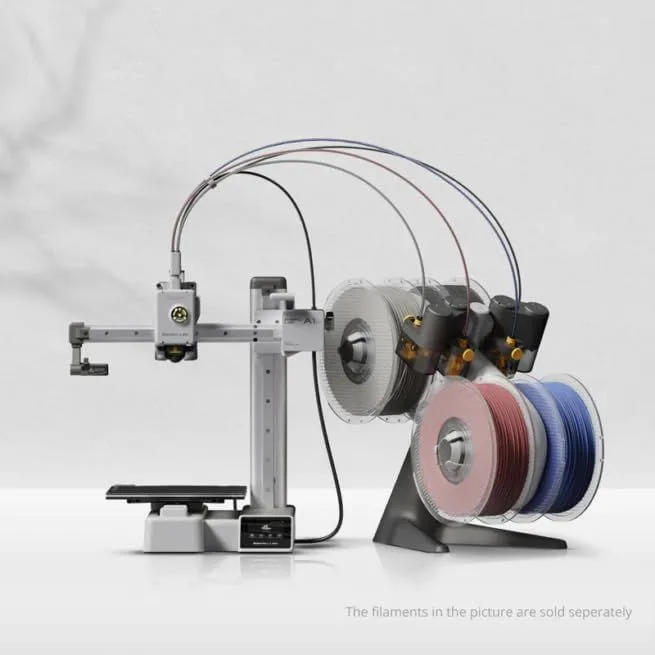
Auto-calibrating printer reduces adhesion issues
ID: BAMBU_LAB_A1_MINI

02_STRINGING_OOZE

Thin hair-like threads between parts of the print. Stringing makes your model look like it grew cobwebs.

Fix 1: Dry the filament. This is the cause eighty percent of the time and the fix most people skip. Wet filament strings regardless of retraction settings. Dry PLA at 45°C for 4 hours, PETG at 65°C for 4-6 hours, Nylon at 70°C for 8+ hours. See our filament storage guide for drying methods.

Fix 2: Increase retraction. Retraction pulls filament back from the nozzle tip during travel moves. Direct drive: 0.5-2mm at 40mm/s. Bowden: 4-7mm at 40-60mm/s. Increase in 0.5mm increments until stringing stops.

Fix 3: Lower nozzle temperature. Hotter filament is more liquid and oozes more. Drop temperature in 5°C increments. PLA: start at 210°C, go as low as 195°C. PETG: start at 240°C, go to 225°C. Watch for under-extrusion — if layers start separating, you went too low.

Fix 4: Enable wipe and coasting. Wipe moves the nozzle along the outer wall at the end of each segment, cleaning the tip. Coasting stops extrusion slightly before the move ends, relieving nozzle pressure. Both are slicer settings — enable in Cura, PrusaSlicer, or Bambu Studio.

SEVERITY: MEDIUM

ROOT_CAUSE: MOISTURE / TEMP

Thin strings of filament appear between separate sections of the print during travel moves.

03_WARPING_CURL

Corners lift off the bed and curl upward. Severe warping can crack the print or pop it off the plate entirely.

Root cause: Uneven cooling. As plastic cools, it contracts. The first layers are locked to the bed while upper layers cool freely, creating internal stress that pulls corners upward. ABS shrinks the most — warping with ABS on an open-frame printer is nearly guaranteed.

Fix 1: Use an enclosure. For ABS and ASA, this is not optional. An enclosed printer — Bambu P2S, ELEGOO Centauri Carbon, Prusa Core One — maintains stable ambient temperature that prevents differential cooling. PLA and PETG rarely warp enough to need an enclosure.

Fix 2: Add a brim. A brim prints a flat border of extra material around the base of the print, increasing the adhesion surface area. Five to ten millimeters of brim is usually sufficient. Remove it after printing with flush cutters.

Fix 3: Reduce print speed for the first five layers. Slower extrusion gives the filament more time to bond and cool evenly. Most slicers allow per-layer speed overrides.

Fix 4: Eliminate drafts. An air conditioning vent, open window, or fan blowing across the printer causes one side to cool faster than the other — instant warp. Move the printer or block the airflow.

04_LAYER_SHIFT

Layers suddenly offset in the X or Y direction, creating a visible step in the print. The printer continues printing in the wrong position from that point forward.

Fix 1: Tighten belts. Loose belts skip teeth on the pulleys, causing the printhead to lose its position. The belt should produce a low-pitched twang when plucked — not floppy, not guitar-string tight. Most modern printers include belt tension indicators.

Fix 2: Check pulley grub screws. The small set screws on motor pulleys loosen over time from vibration. A loose grub screw allows the pulley to slip on the motor shaft — the motor turns but the belt does not move. Tighten with the correct hex key (usually 1.5mm or 2mm). Apply a tiny drop of thread-locker if the problem recurs.

Fix 3: Reduce speed and acceleration. If shifting happens consistently at the same layer, the printer is exceeding its mechanical limits. Drop acceleration by twenty percent. If the shift stops, the original settings were too aggressive for the frame rigidity. Learn more about the relationship between speed and motion systems in our CoreXY vs bed-slinger guide.

Fix 4: Check for mechanical obstruction. A loose cable, a piece of filament debris, or a spool that ran out and jammed the feed tube can all cause momentary resistance that shifts a layer. Inspect the motion path for anything that could catch or snag.

05_UNDER_EXTRUSION

Gaps in walls, thin or missing layers, weak parts that break easily. The printer is not pushing enough filament for the requested volume.

Fix 1: Increase nozzle temperature. If the filament is not melting fully, the extruder cannot push enough material through. Raise temperature in 5°C increments. This is especially common with PETG and high-speed PLA variants that need higher flow rates.

Fix 2: Calibrate E-steps. The extruder motor may be pushing less filament than the firmware thinks. Mark 120mm from the extruder entry, command 100mm of extrusion, then measure how far the mark moved. Adjust the E-steps value until exactly 100mm feeds through. This is a one-time calibration that most auto-calibrating printers handle automatically.

Fix 3: Check for a partial clog. A partial clog lets some filament through but restricts flow — prints look thin and weak. Do a cold pull: heat the nozzle to 240°C, push filament in, cool to 90°C, then pull the filament out firmly. The tip should come out cone-shaped with debris stuck to it. Repeat until the filament comes out clean.

Fix 4: Replace the nozzle. Brass nozzles wear out. After hundreds of hours, the internal bore enlarges and filament path becomes inconsistent. Carbon fiber filament accelerates wear by ten to twenty times. If a cold pull does not fix under-extrusion, a fresh nozzle usually does. Keep spares on hand — they cost under five dollars for brass.

06_NOZZLE_CLOG

Filament stops extruding completely. The motor clicks or grinds but nothing comes out. The nozzle is blocked.

Fix 1: Cold pull technique. Heat nozzle to printing temperature. Push filament in by hand until it flows. Cool to 90°C (for PLA; 150°C for PETG/ABS). Pull the filament out firmly and steadily. The tip should come out cone-shaped with debris. Repeat three to five times until the filament comes out clean. This clears partial clogs and carbonized material from inside the nozzle.

Fix 2: Use an acupuncture needle. With the nozzle heated, insert a 0.3-0.35mm cleaning needle (included with most printers) up through the nozzle opening. Work it in and out several times to break up lodged debris. Then do a cold pull to extract the loosened material.

Fix 3: Check heat break and PTFE tube. On all-metal hotends, heat creep causes filament to soften too early and jam in the heat break zone. Improve cooling on the heat sink (check that the fan runs at full speed). On Bowden setups, a gap between the PTFE tube end and the nozzle seat creates a dead zone where filament collects and carbonizes. Ensure the tube is cut flat and pushed firmly against the nozzle.

The Bambu P2S's DynaSense servo extruder detects clogs automatically and pauses the print before the blockage causes permanent damage. AI-assisted clog detection is one of the strongest reasons to choose a modern printer over an older design — a clog at 3am on an older machine wastes the entire print. On a P2S, the printer pauses, you clear the nozzle, and resume from the exact layer where it stopped.

07_SURFACE_QUALITY

Rough surfaces, visible layer lines worse than expected, blobs, zits, or inconsistent extrusion width. The print works but looks bad.

Fix 1: Reduce layer height. Dropping from 0.2mm to 0.12mm layers produces visibly smoother surfaces at the cost of longer print time. For display pieces where appearance matters, the time trade-off is worth it. For functional parts that get painted or hidden, 0.2mm is fine.

Fix 2: Check filament diameter. Cheap filament with inconsistent diameter (±0.05mm or worse) causes variable extrusion — thick spots overfill and thin spots underfill. Quality filaments like Hatchbox PLA with ±0.02mm tolerance produce measurably smoother surfaces. The material cost difference is small compared to the quality improvement.

Fix 3: Tune linear advance / pressure advance. This firmware feature compensates for the delay between extruder motor movement and actual filament flow at the nozzle. Without it, corners overshoot (blobs) and straight segments undershoot (thin lines). Klipper firmware calls it Pressure Advance; Marlin calls it Linear Advance. The A1 Mini tunes this automatically during its calibration routine.

Fix 4: Slow down. Above 300mm/s, surface quality degrades on most printers. If your print is for display, not speed, reduce to 150-200mm/s for visibly cleaner walls. The first wall (outer perimeter) can run slower than inner walls and infill — most slicers allow separate speed settings for each.

08_PREVENTION_PROTOCOL

Most printing problems are preventable with three habits.

Clean the bed before every print. A quick wipe with IPA takes ten seconds and prevents the most common failure. Make it automatic — IPA bottle and microfiber cloth next to the printer.

Store filament dry. A sealed bag with desiccant extends filament life by months and eliminates moisture-related stringing, popping, and weak layer adhesion. Details in our filament storage guide.

Inspect the first layer. Watch the first layer of every print. If it looks wrong — gaps, poor adhesion, inconsistent width — cancel and fix the issue before wasting an hour of filament on a doomed print. The first layer predicts 90% of what the final print will look like.

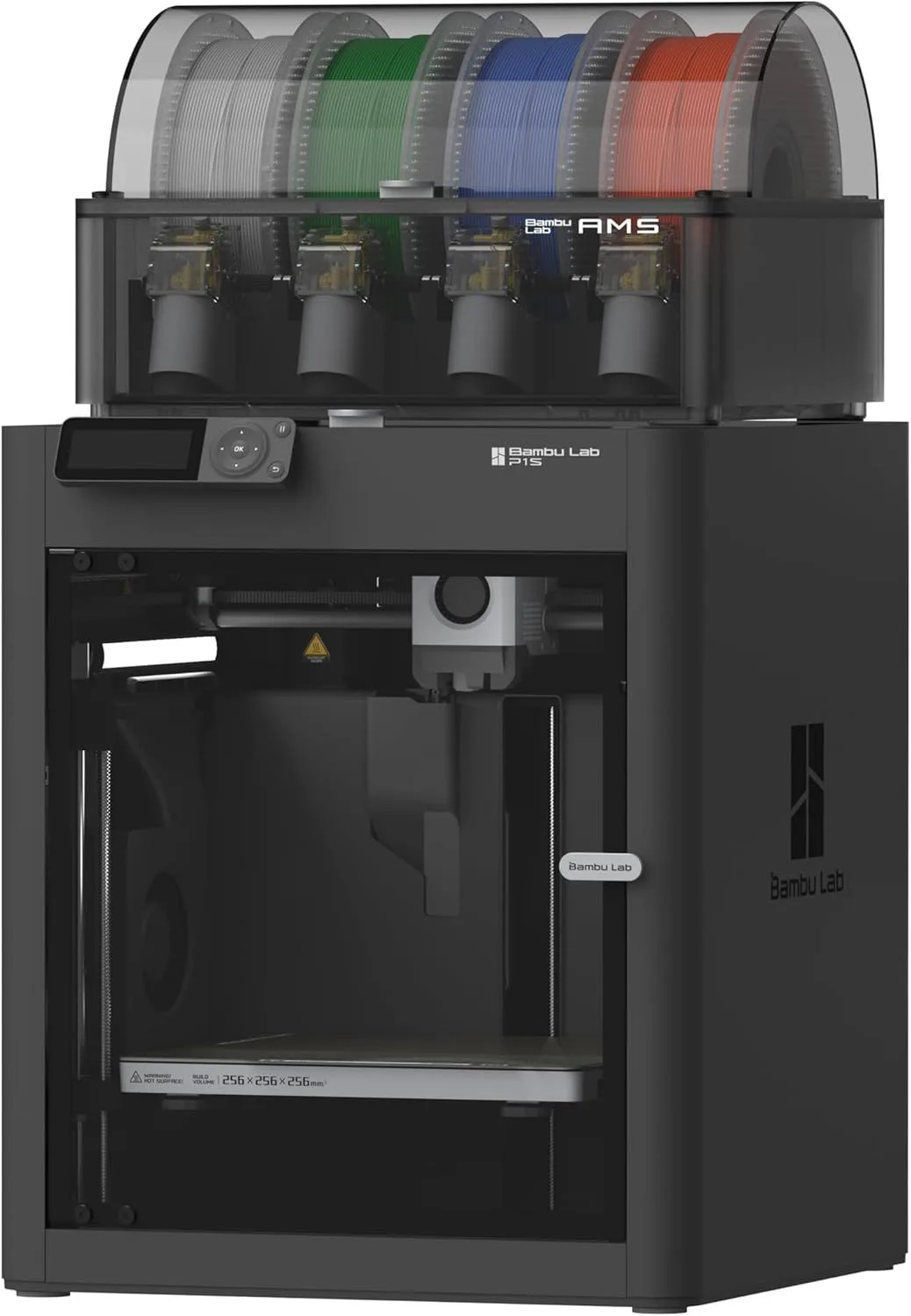
Enclosed printer prevents warping and environmental issues
ID: BAMBU_LAB_P1S

Our Top Pick

Bambu Lab A1 Mini 3D Printer

Fewest troubleshooting issues in our review database — auto-calibration, input shaping, and clog detection handle most problems before they start.

06_DIAGNOSTIC_QUERIES

QUERY_01: WHY DOES MY FIRST LAYER NOT STICK TO THE...

Four causes account for 90% of adhesion failures: the nozzle is too far from the bed (increase Z-offset by 0.05mm increments), the bed is not clean (wipe with IPA before every print), the bed temperature is too low (try 60°C for PLA, 80°C for PETG), or the first layer speed is too fast (slow to 30mm/s for the first layer). Auto-leveling printers fix most of these automatically.

QUERY_02: HOW DO YOU FIX STRINGING BETWEEN PARTS?...

Stringing means the nozzle leaks filament during travel moves. First, dry your filament — moisture causes stringing regardless of settings. Then increase retraction distance (1-2mm for direct drive, 4-6mm for Bowden), increase retraction speed to 40-60mm/s, and reduce nozzle temperature by 5°C increments until stringing stops without causing under-extrusion.

QUERY_03: WHAT CAUSES LAYER SHIFTING MID-PRINT?...

Layer shifting — where layers suddenly offset horizontally — is usually mechanical: loose belts, worn pulleys, or the stepper motors losing steps from overheating. Tighten belts until they produce a low twang when plucked. Check pulley set screws (grub screws) on the stepper shafts. Ensure motor drivers are not thermal throttling by checking if the electronics enclosure has adequate ventilation.

QUERY_04: WHY DO MY PRINTS WARP OFF THE BUILD PLAT...

Warping happens when the print cools unevenly — edges contract faster than the center, pulling corners upward. Solutions: use an enclosed printer for ABS and ASA, apply a brim (5-10mm extra border around the base), increase bed temperature by 5-10°C, reduce print speed for the first five layers, and ensure no drafts hit the printer during operation.

QUERY_05: WHAT CAUSES GAPS IN THE TOP SURFACE OF P...

Visible gaps or holes in the top layer mean insufficient top solid layers (increase to 5-6 top layers), under-extrusion (calibrate E-steps or increase flow rate by 2-5%), or printing too fast for the nozzle to maintain pressure. If gaps appear only on low-infill prints, increase infill density to 20%+ so the top layers have structural support underneath.

Now That You Know the Fixes

Most failures trace back to filament quality and hardware age. Upgrade your setup or dial in your material.

RELATED_CONTENT

David King
VERIFIED
WRITTEN_BY
David KingFounder

I built LayerDepth to create the detailed, unbiased 3D printer comparison resource I wished existed. With a background in aerospace manufacturing management at Rolls-Royce — overseeing the build and assembly of complete jet engine sections for Airbus and Boeing aircraft — I apply that same demand for rigorous analysis and high standards to evaluating print quality, mechanical reliability, and real-world performance.

Full methodology arrow_forward

Update — April 6, 2026

A new competitor has entered this category. See our adventurer-5m-3d-printer review for the latest comparison.

Update — April 6, 2026

A new competitor has entered this category. See our adventurer-5m-3d-printer review for the latest comparison.

Update — April 6, 2026

A new competitor has entered this category. See our adventurer-5m-3d-printer review for the latest comparison.