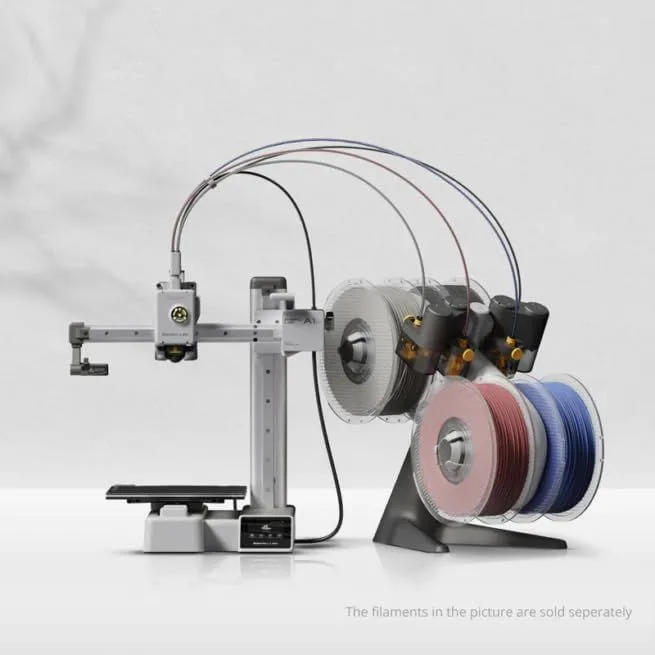
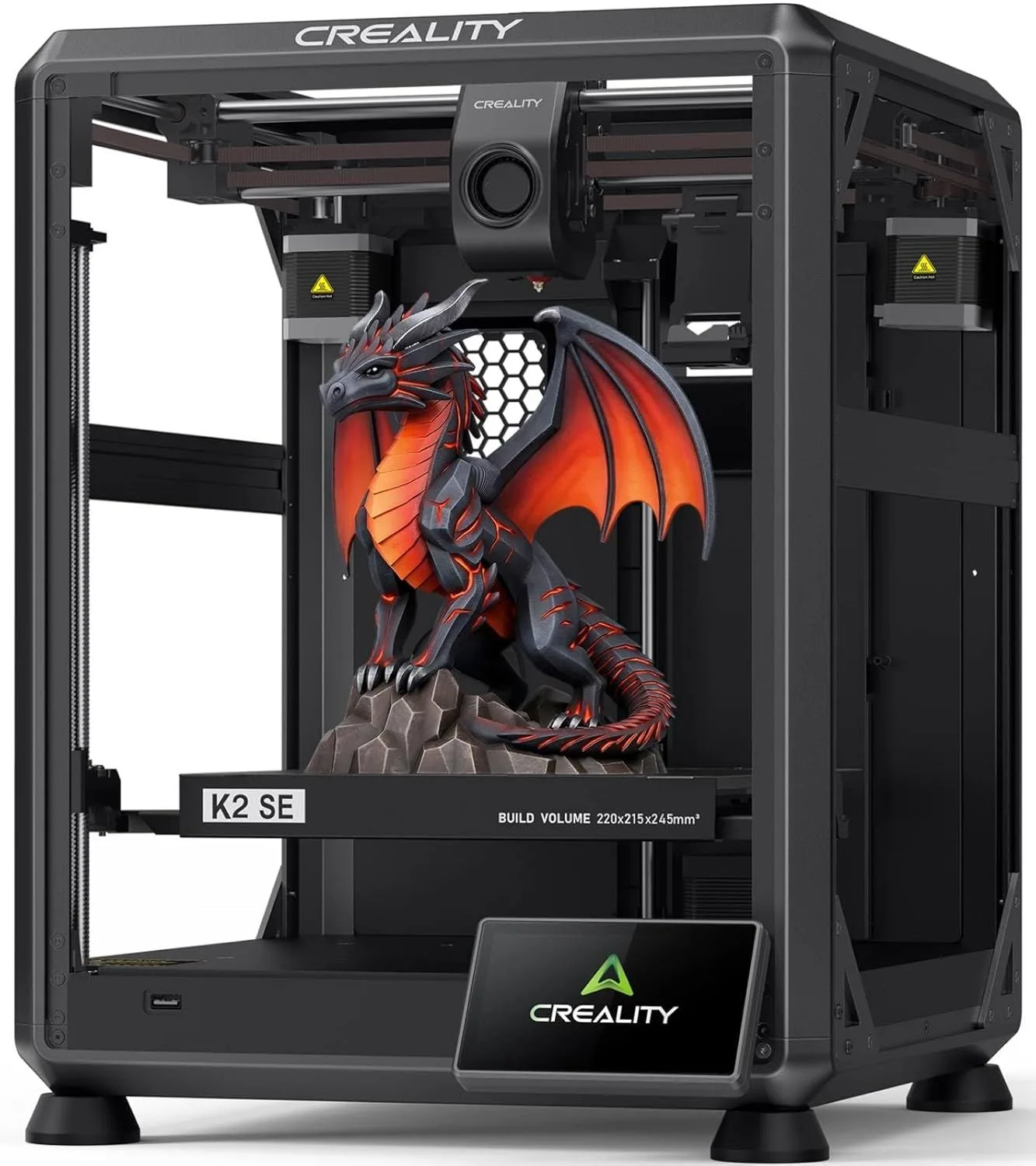
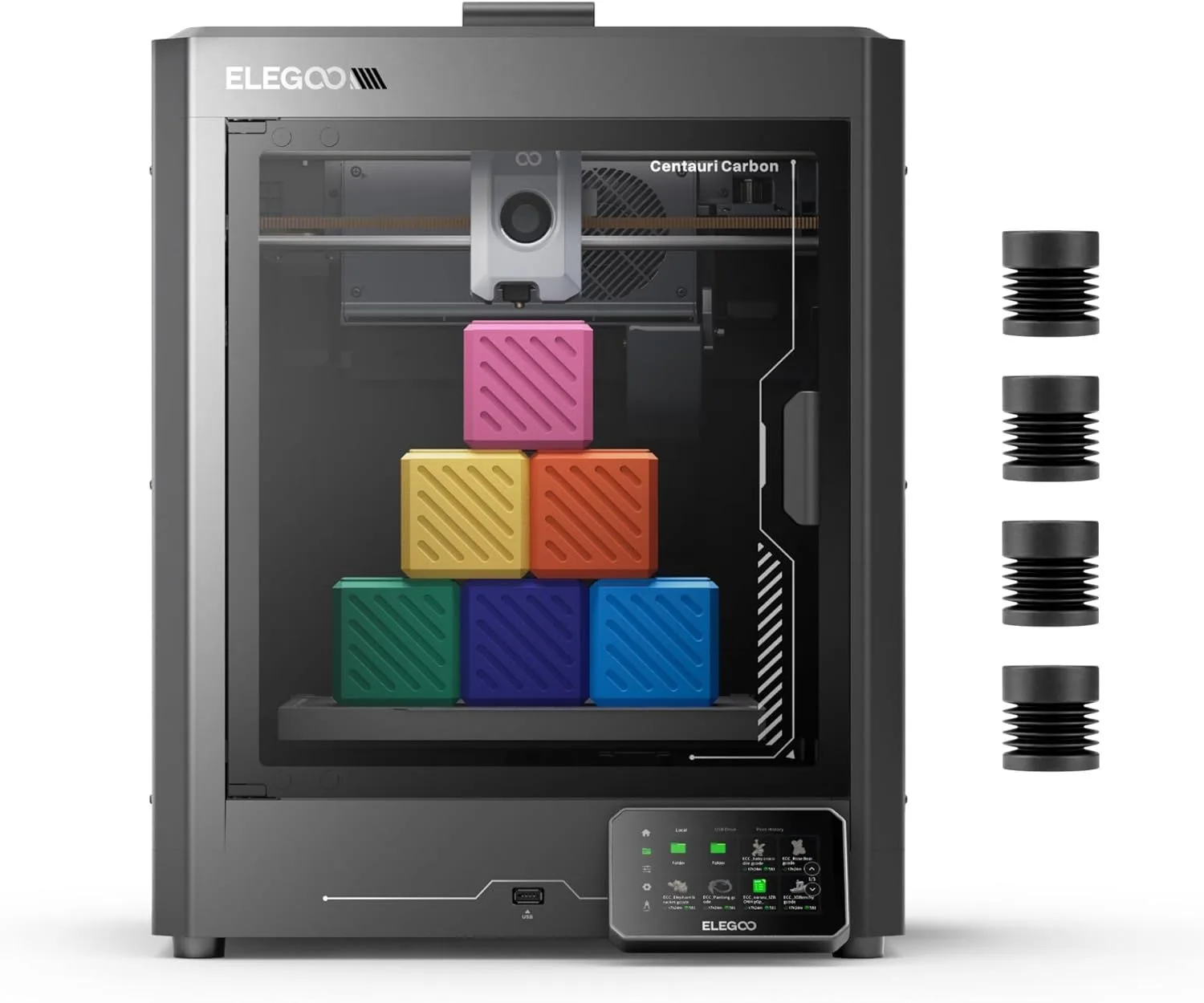
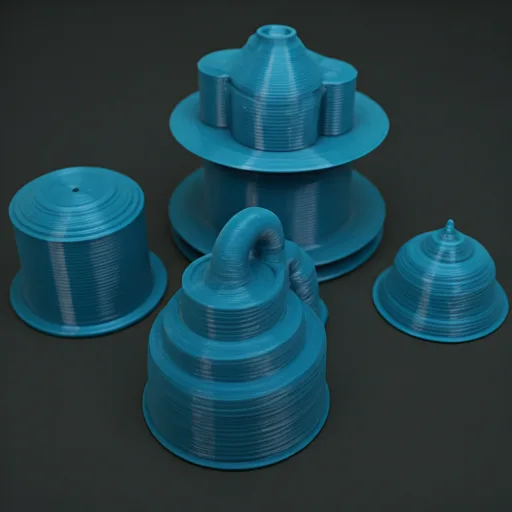
The first print matters more than any lesson plan. A student who watches a 3D printer produce a physical object from a digital file experiences the core concept of digital fabrication in 20 minutes. That experience — watching layers build into a recognizable shape — creates more engagement than any slide deck about manufacturing. Start with something fast, visually interesting, and impossible to get wrong.
Week one projects should take under 30 minutes to print, use no supports, and produce something a student wants to keep. Keychains with student names (teaches text extrusion in TinkerCAD), phone stands (teaches functional design), fidget spinners (teaches assembly from multiple parts), and carabiners (teaches tolerance and clearance) all hit these criteria. MakerWorld and Printables host thousands of free classroom-ready models tagged by difficulty level and print time. Download 10 options. Let students pick. Choice creates ownership.
By week four, shift from downloading to designing. TinkerCAD is free, browser-based, and requires zero installation — critical for school IT environments that lock down software installs. The workflow from idea to physical object takes a full class period: 15 minutes designing in TinkerCAD, 5 minutes exporting and slicing, 20-40 minutes printing. Students who design their own objects invest differently than students who download pre-made files. The failed print of their own design teaches more than the successful print of someone else's model.
Mid-semester projects should connect to existing curriculum. Science classes print molecular models, topographic maps, and cross-sections of geological formations. Math classes print geometric solids, fractals, and function surfaces. Engineering classes print bridge designs and test them to failure — the physical destruction of a bridge they designed and printed creates a visceral understanding of structural load that no textbook diagram achieves. Art classes print sculptures, jewelry, and architectural models. History classes print artifact replicas and architectural scale models of historical buildings.
The end-of-semester capstone is where 3D printing proves its educational value. Student teams identify a real problem, design a solution in CAD, iterate through multiple printed prototypes, and present the final product. This project hits engineering design process standards, communication standards, and technical documentation standards simultaneously. The physical prototype — held in their hands during the presentation — creates a portfolio artifact that transcends any written assignment. Schools that have implemented this capstone model report that students reference their 3D-printed projects in college application essays and scholarship interviews years later.
Filament management is the hidden curriculum challenge. Buy PLA only — not PETG, not ABS, not TPU. PLA is non-toxic, prints at the lowest temperatures, and produces the fewest failures. Stock 3-4 colors (white, black, red, blue cover most requests). Designate one student per period as the "print tech" who manages the queue, loads filament, and removes finished prints. Rotating this role teaches responsibility and technical skills that the printer operator absorbs by doing. After one semester, these student print techs can troubleshoot bed adhesion, diagnose stringing, and adjust slicer settings independently — skills that transfer to any manufacturing context.
Common educator mistakes to avoid: do not start with complex multi-part assemblies (frustration kills interest), do not require perfect prints for grades (failed prints are the best learning opportunities), do not limit printing to STEM classes only (art and humanities students produce the most creative applications), and do not buy the cheapest printer available (a $100 printer that jams twice per class period teaches students that "3D printing doesn't work" — the opposite of your goal). Two reliable machines beat five unreliable ones. Quality over quantity applies to printers exactly as it applies to every other classroom investment.